Getting started
Your first half hour with the beta, in the order it makes sense to do it. Only the first two steps are compulsory. Everything else can wait, and all of it lives in Settings when you want it.
01
Install, and choose a passphrase
Open the file from your download link, drag NexxusCRM into Applications, and open it from there. It runs on Apple silicon and Intel Macs. The app is signed and checked by Apple, so macOS only asks the usual question about something downloaded from the internet. Click Open.
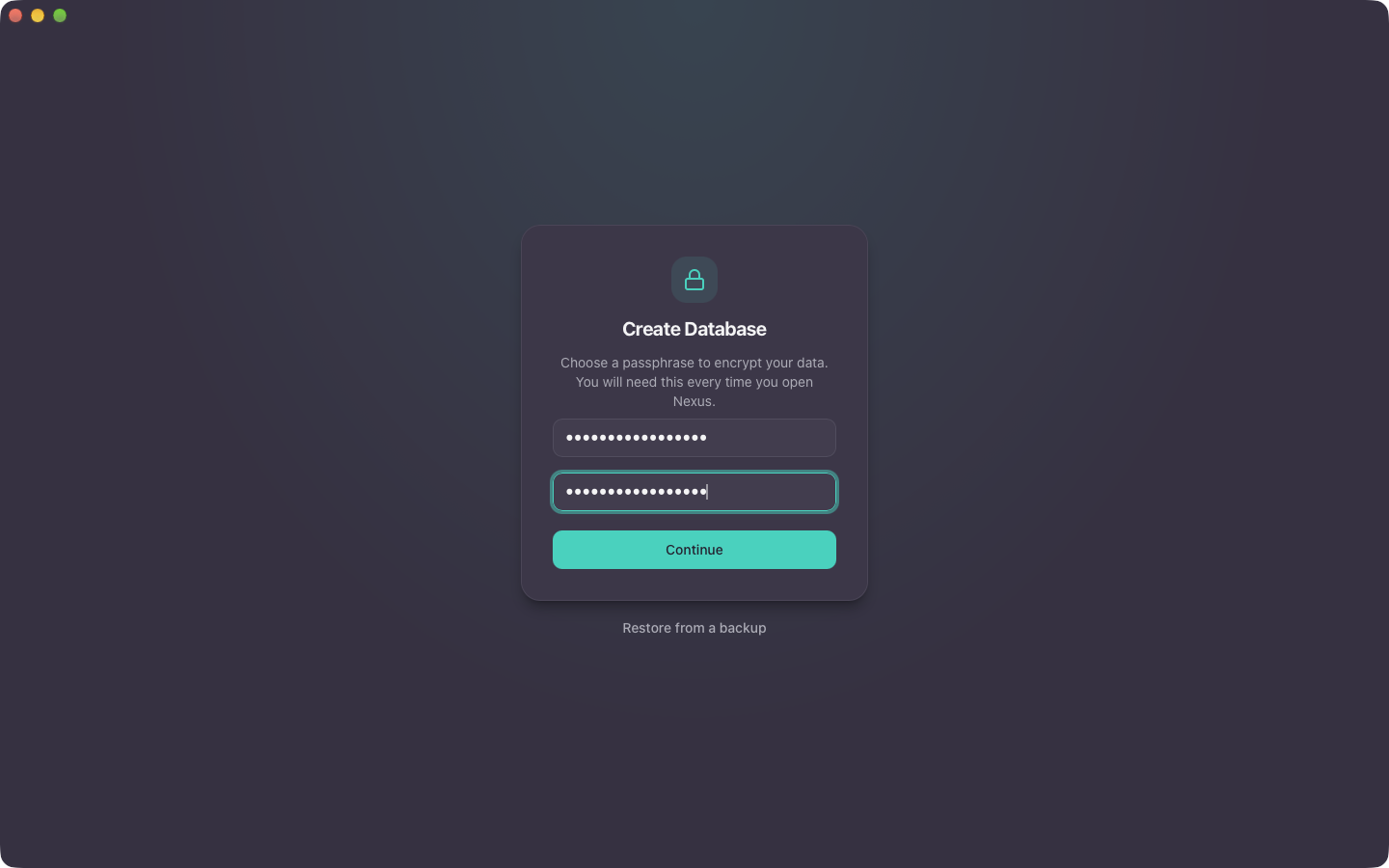
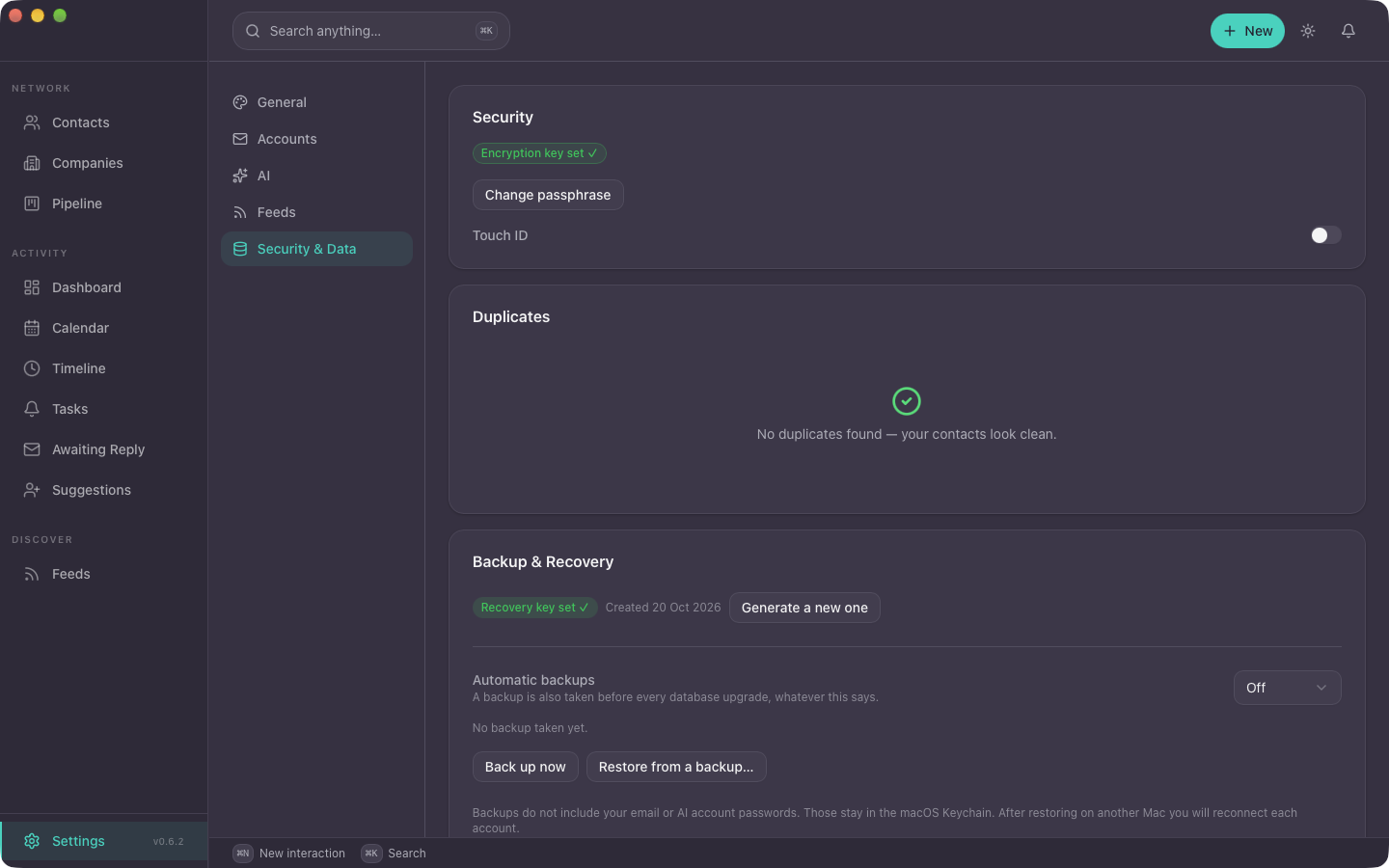
The first screen asks for a passphrase of at least eight characters. It encrypts everything the app stores, and you type it each time you open the app. Touch ID can take over later, in Settings › Security & Data.
02
Write down the recovery key
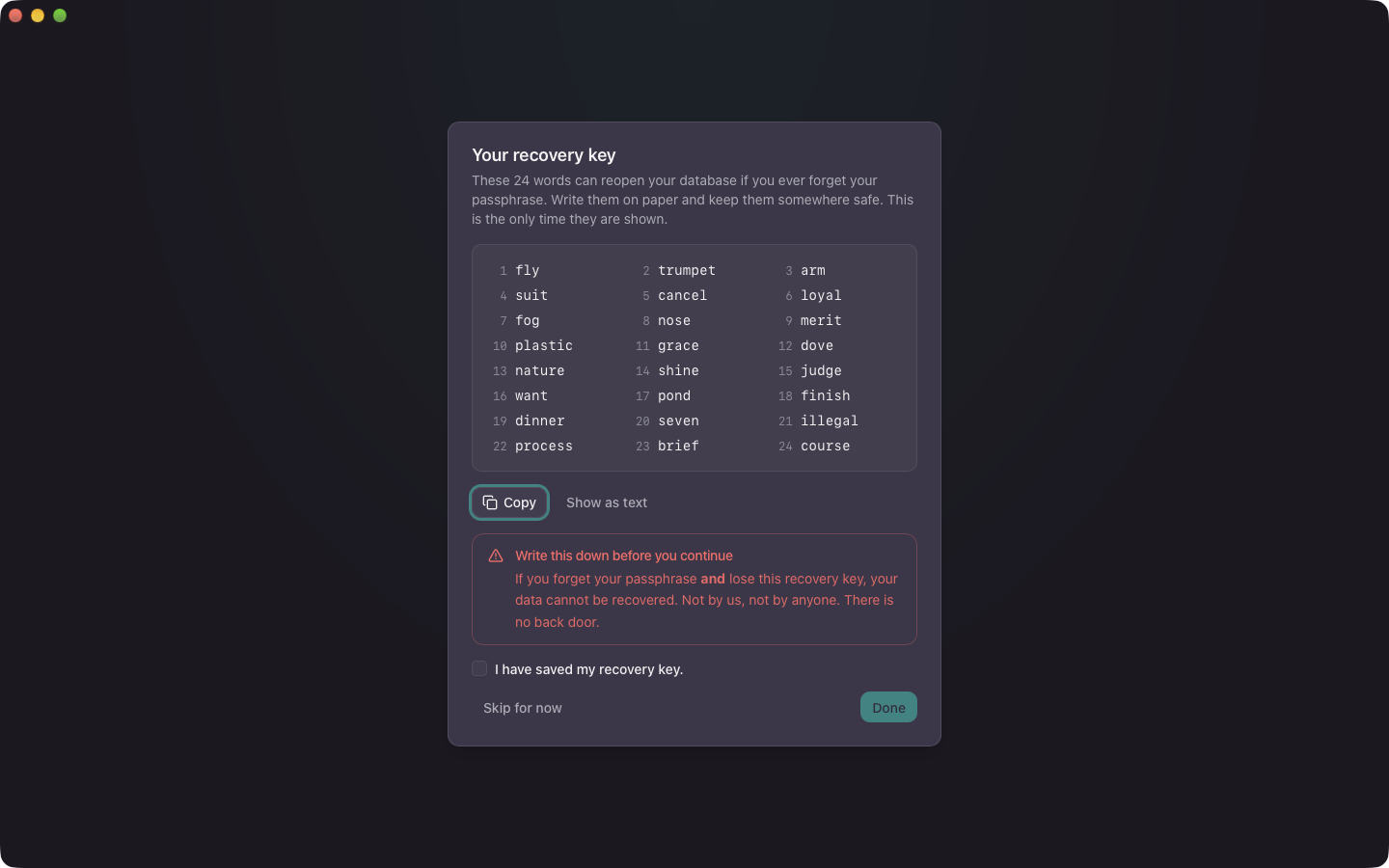
Next the app shows a recovery key: 24 words, shown once. Write them on paper and put the paper somewhere sensible. A screenshot on the same Mac is a brave choice.
We never see your passphrase or your recovery key. If you lose both, nobody can open your data. Not us, not anyone. You can make a new key later in Settings › Security & Data.
03
Connect your email
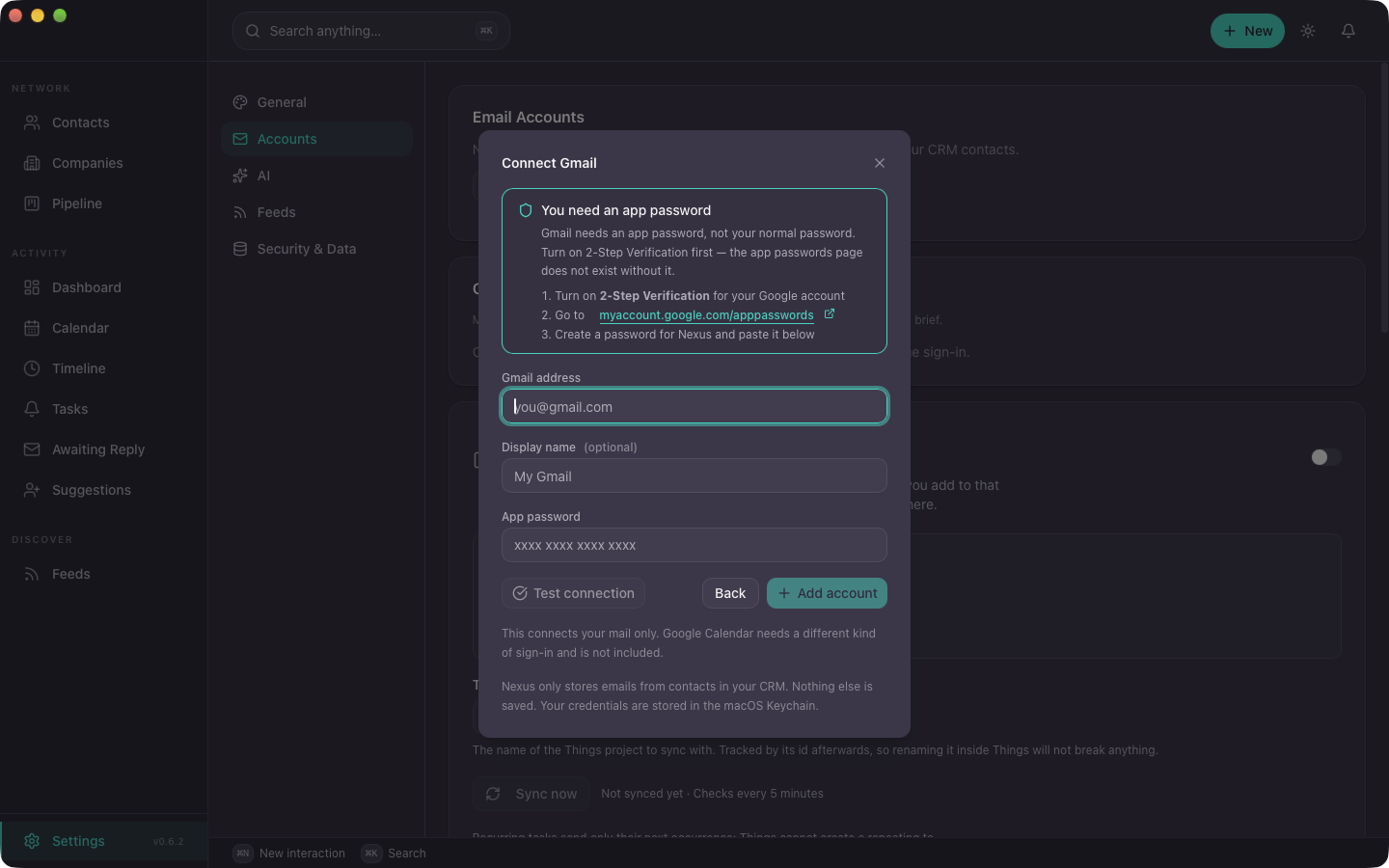
Settings › Accounts › Add email account. The app reads your mail over IMAP and sends replies over SMTP, straight from your Mac to your provider. It keeps only the emails to and from people in your CRM.
- Gmail: you need an app password, not your normal Google password. Turn on 2 Step Verification first, because the app passwords page does not exist without it. Then make one at myaccount.google.com/apppasswords.
- iCloud Mail: an app password from Apple. Go to appleid.apple.com, then Sign-In and Security, then App-Specific Passwords.
- Proton Mail: through Proton Mail Bridge, which needs a paid Proton plan. Use the Bridge password.
- Anything else, Outlook and Fastmail included: choose Other (IMAP) and enter your provider's server details.
Test connection tells you it works before you save. Passwords are kept in your macOS Keychain. The first sync of a large inbox takes a while, and Awaiting reply may be longer than you hoped. That is the app working, not a fault.
04
Bring in your contacts
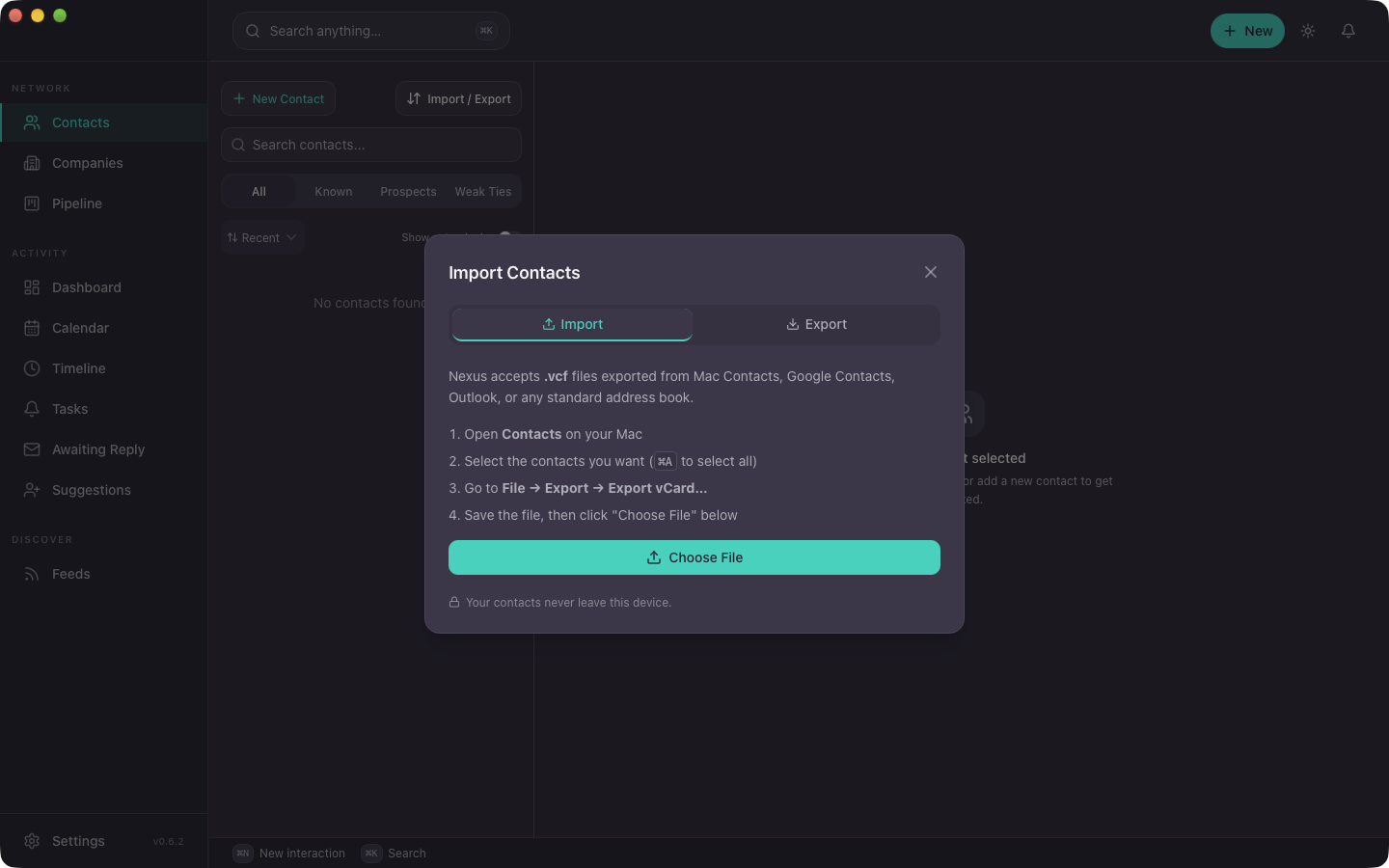
The app imports vCard files. In the Contacts app on your Mac, select your contacts (Cmd+A for all of them), then choose File › Export › Export vCard.
In NexxusCRM, open Contacts, click Import / Export, and choose the file. Your contacts never leave your Mac.
05
Turn on backups
Settings › Security & Data › Backup & Recovery. Automatic backups are off until you choose daily or weekly and pick a folder. This is a beta, so please turn them on.
Backups are encrypted .nexxusbackup files, and the app also takes one before every upgrade. They do not include your email or AI passwords, which stay in the macOS Keychain.
06
Local AI, if you want it
AI is optional. The app works without it. With it, you get email summaries, meeting prep briefs, followup drafts, search in plain English, and feed scoring. The private way is Ollama, which runs models on your own Mac:
- Install Ollama from ollama.com.
- Download a model. A small one is a sensible start: run
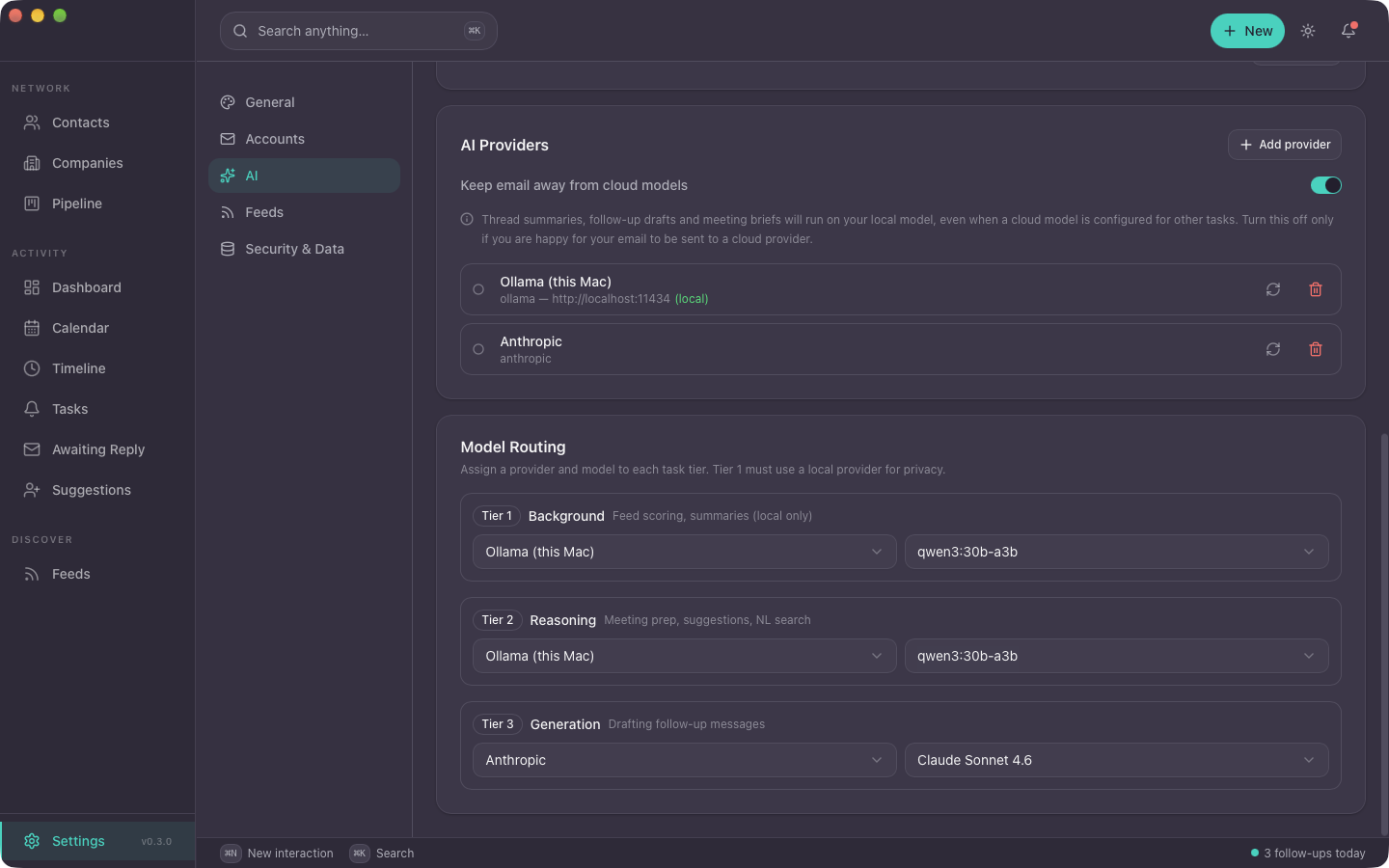
ollama pull llama3.2in Terminal. - In the app, open Settings › AI, add Ollama under AI Providers, then choose the model for each tier under Model Routing.
You can also add Anthropic or any OpenAI compatible server. Email and message text is kept away from cloud models by default. With no local model, those tasks refuse to run rather than fall back to the cloud.
07
The iPhone app, if you want it
The iPhone app is for the moment you meet someone. Look a person up, add someone new, scan their business card, tag the event, take a photo and say a note. It works without signal. Once paired, it and your Mac keep each other up to date.
- Install TestFlight, Apple's app for betas, from the App Store on your iPhone.
- Open the NexxusCRM TestFlight link on your iPhone and tap Install.
- On your Mac, open Settings › Accounts › iPhone sync and enter your invite code. Each code works once, within seven days. Type the email you signed up with and we will send you one.
- The Mac then shows a QR code. Open the app on your iPhone and scan it. Your contacts arrive on the phone, and whatever you add there turns up on the Mac.
Changes travel through our relay, locked on one device and unlocked on the other. The relay holds them only in that locked form and cannot read them. The privacy page says what it does keep.
08
When you are ready
Calendar
Settings › Accounts › Calendar. Meetings with your contacts become interactions, and upcoming ones get a prep brief. In the beta this works with iCloud accounts. Google Calendar needs a different kind of Google sign in, which the beta does not offer yet.
iMessage and WhatsApp
The app reads the databases Messages and WhatsApp for Mac already keep on your Mac. It needs Full Disk Access: System Settings › Privacy & Security › Full Disk Access. It only reads these files, never writes to them.
Things 3
Settings › Accounts, then switch on Integrate with Things 3. Tasks become todos in a Things project, both ways, every five minutes. Things needs to be running, and macOS asks you to allow the app to control it.
Where your data lives
In one folder on your Mac: ~/Library/Application Support/com.nexxuscrm.app/. The database is SQLite, encrypted with SQLCipher. Export everything as JSON from Settings › Security & Data, and contacts as vCard. The privacy page has the full detail.
Updates
The app checks for a new version when it opens and offers to install it. Turn that off in Settings › General › Updates and check by hand instead. The privacy page says exactly what the check sends.
Something broke, or made no sense
Write to hello@nexxuscrm.com, or reply to your download email. It comes straight to me, and in a beta of this size it gets read.